



Salutations.display()
I'm Kalen Gibbons
I create things with code
- Where Montana, USA
- E-mail kalen@stoneandblade.com
- Phone +1 (951) 923-CODE
-
Occupation
Software Engineer,
Freelance Developer,
Business Owner - Since May 2007



















"Hello, my name is Kalen Gibbons, and I'm a codeaholic".
Well... I may not need a support group, but I am very passionate about software development and
architecture. Coding is both my day job and my leisure activity. I own two development companies
and have been programming for over a decade. I live in the beautiful state of Montana with my
lovely wife and four wonderful children.
Professional Skills
Work Experience
2016 - Present
Co-owner and Consultant
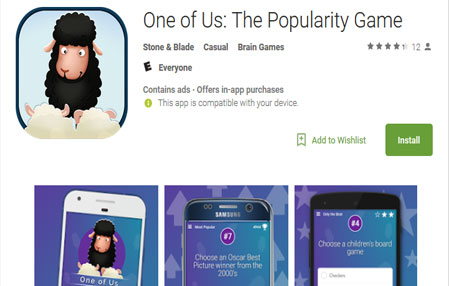
Stone & Blade is a joint effort, created by Brandon Born and myself. It was created as an outlet to support our after hours endeavors and pet projects. Through this we develop mobile apps like One of Us, and have a long list of future projects in queue.
2013 - Present
Consulting Application Developer
Currently leading client-side and API development for my.esri.com, the one-stop portal for Esri customers to download and activate software, track orders and licensing, get support and much more. The site is available in over 30 languages and is written in Angular JS and Node.
2012 - Present
President & Lead Engineer
Sercossa Inc. was created as a development firm to facilitate my transition into
freelance and contract work.
I am currently acting as President, in charge of acquiring clients, managing payroll, etc.
This corporation also serves as an umbrella for some additional efforts, such as our subscription
service - Foster-Training.com.
2011 - 2014
Consulting Application Developer
Solitarily developed an application for Gojo (makers of Purell) for managing, tracking, and reporting
the use of hand sanitization stations in hospitals, using state-of-the-art sensor technology.
The application was written with Adobe Flex, ColdFusion, and MySQL.
2011 - 2015
Inland Empire
ColdFusion User Group
IECFUG Co-Manager & Presenter
Helped plan, organize, and manage monthly user group meetings.
Also, assisted in finding speakers and presenters, handling group
communication and made a mobile app for managing attendance and
awarding raffle winners.
2007 - 2012
Team Lead & Senior Application Developer
Responsible for leading the "Framework Applications" team in daily operations,
architectural review and peer mentoring.
Developed applications using Flex or AJAX front-ends and ColdFusion back-ends. My
applications were critical to customers – required for them to download, authorized, and
use Esri software.
Responsible for screening and interviewing all candidates applying for ColdFusion, Flex,
and other related positions.
Education
2007
Bachelor of Science in Business Administration
Option in Computer Information Systems
California State Polytechnic University Pomona
- Graduated Magna Cum Laude
- President's & Dean's Honor Lists
- Member of Golden Key Honor Society
Extracurricular Projects

Site
2015
#Co-creator
#Full-Stack Developer
Foster-Training.com
An educational website dedicated to foster and adoptive parents, providing them a simple online experience for fulfilling their annual training hours.
Book
2009
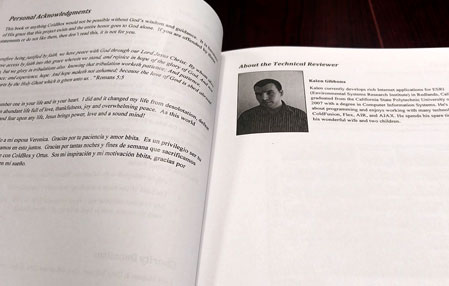
The Definitive Guide
#Technical Editor
#mazon
The Definitive Guide
To The ColdBox Platform
ColdBox is the de facto framework for anyone developing ColdFusion applications, and this book is the A-Z guide. It is available at Amazon and other popular retailers.
Book
2012
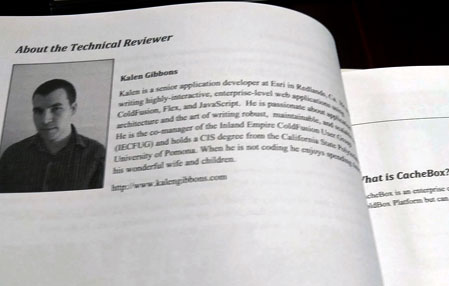
#Technical Editor
#mazon
CacheBox: Scaling Your ColdFusion Applications
CacheBox is an enterprise caching engine for ColdFusion applications. This book is an instructional guide for any level of developer. Also available at Amazon and similar retailers.
More Recent Work
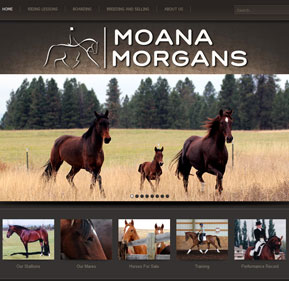
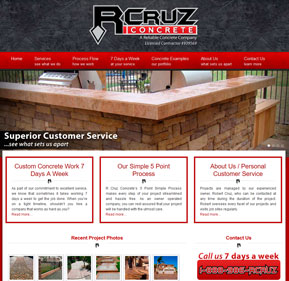
References
-
Aside from being knowledgeable and very well versed in a wide range of subjects and tech, he is also an extremely nice person and just a pleasure to work with. If you're looking for quality from both professional and personal standpoints, look no further - he is that guy.
 Vladimir Ugryumov Senior Application Engineer | Medidata Solutions
 -
Kalen is one of the best developers around. [He] does a fantastic job of ensuring he understands the requirements and his work products always hit the mark. His hard work, dedication to the team, honesty, and great communication skills have made [him] very successful.
I give Kalen my highest recommendation. Bob Waltrip Program Manager / Sr. Project Manager | Esri
 -
[Kalen] is one of the best developers I have ever worked with.
He is an extremely valuable person to have in the team. His responses are timely, value-added and his ability to listen and understand the requirements thoroughly and come up with efficient ways to implement them is marvelous. Preethi Varambally Senior Product Manager | Pivotal Software, Inc.
 -
Our company greatly benefited from his multiple sets of skills as a developer, as a communicator, and software architect.
I’d recommend Kalen with no hesitation and I am positively sure, as are any of my colleagues who worked with him, that he will be an asset to have in your team. Cosmo Greco Project Manager | Esri
 -
[Kalen] is a solid programmer with a well rounded understanding of web application development. Very detail oriented and easy to work with. One of the strongest developers I have had the pleasure to work with.
 Josh Highland Founder & CEO | Venntov
 -
If I were starting a business and needed developers, Kalen would not be the only developer that I would hire, but he would be the first. Kalen's broad range of web development knowledge, sterling work ethic, and ability to clearly define project scope put him on the top of the heap.
 Stephen Wittenberg Senior Developer | Esri
 -
[Kalen] has an exceptional ability to develop new skills and solve incredibly complex problems, setting him apart from many developers and analysts.
Even more so, [his] impeccable persona draws others to work and collaborate with him. Scott Dabbs Senior Business Manager, Global Business Development | Esri
 -
Quality work with creative solutions and attention to detail, delivered on time above and beyond expectations.
I worked with Kalen for 11 years and can attest to his ability to meet or beat deadlines, to listen to you to understand your needs, and to constantly hone and improve his craft. He’s a smart, helpful, caring man, and you couldn’t do better than to have him on your team or your project. Teresa Dolan Business Analyst | Esri
 -
Kalen is so knowledgeable and always ready to help team members.
[He] is an excellent resource and has a high degree of problem solving skills. Hari Popuri Senior Consultant | Acumen Solutions
 -
[Kalen] is a phenomenal developer, and has the work ethic and soft skills that make him impossible to replace.
I appreciate his loyalty and dedication to the team, and also as a friend. Sherry Christian Manager of Applications | Esri
 -
Kalen is a very sharp-witted thinker. [He] was a great resource to help me solve programming issues (particularly in JavaScript). Kalen taught me useful techniques in critical thinking and analysis. He’s an all-around great soul.
 Raymond Heredia Application Development Specialist | Accenture
 -
[Kalen] is a leader with an unflappable attitude and the ability to think big picture. Most importantly, Kalen is very passionate about his craft and therefore only produces the highest quality of work.
 Cole Collins Developer | Esri
Get in Touch
Let me know you were here
-
Address
2302 U.S. Hwy 2 E #9
Kalispell, MT 59901 - phone +1 (951) 923-CODE
- E-mail kalen@stoneandblade.com